Categories and tags are global: they are shared by all sites in the installation. A post has exactly one category and any number of tags.
Categories
Manage categories at Admin > Blog > Categories (/admin/blog/category). The list shows each category's name, slug, description and the number of posts in it.
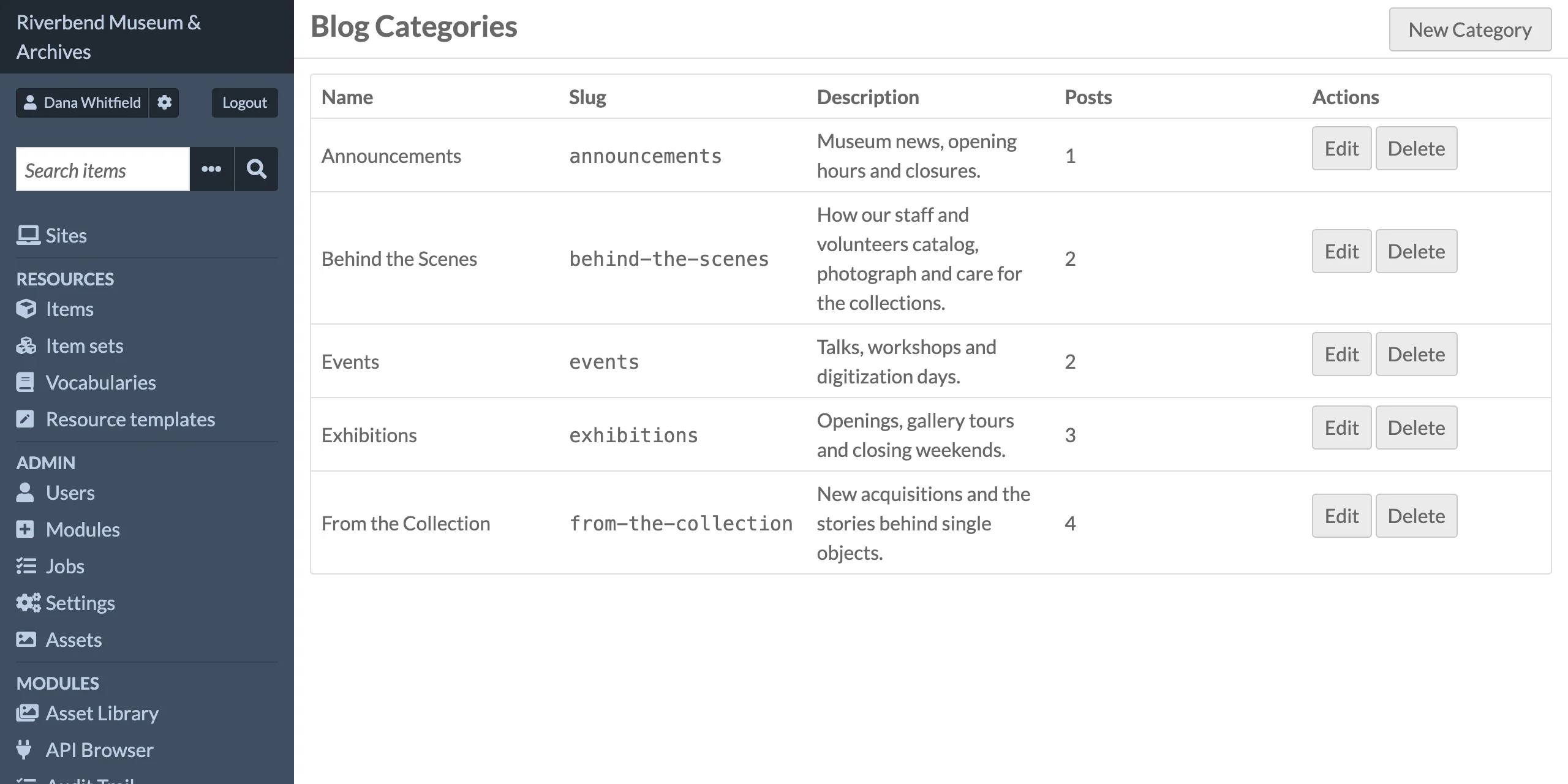
Creating a category
- Click New Category.
- Enter a Name (required).
- Optionally enter a Slug. Leave it blank to generate one from the name (lowercase letters, digits and hyphens). Slugs must be unique.
- Optionally enter a Description. It is shown under the heading of the category's public archive page.
- Click Create Category.
Categories can also be created and edited through the REST API.
Editing and deleting
Use Edit in the list to change the name, slug or description. Changing the slug changes the archive URL.
Delete asks for confirmation, then removes the category. Posts in it are kept and become uncategorised. Because the post form requires a category, each of those posts must be given a new category the next time it is saved.
On the public site
- The index sidebar lists the categories that have at least one published post on the current site.
- Post summaries and the post page show the category as a filled pill (
.post-category) linking to/s/{site-slug}/blog/category/{slug}. - The archive page shows the category name, its description and the matching posts, paginated with Posts per page.
- The Blog Posts block can be limited to one category.
Tags
Tags have no admin page. They are created and assigned from the post form.
- Open a post for editing.
- In the Tags field, type tag names separated by commas, for example
omeka, digital humanities, tutorial. - Save the post.
Each name is turned into a slug (digital humanities becomes digital-humanities). If a tag with that slug already exists it is reused, keeping its original display name; otherwise a new tag is created. Removing a name from the field and saving detaches the tag from the post. Tags that no longer have posts are not deleted automatically and still appear in the REST API tag list.
On the public site
- The index sidebar shows a tag cloud of tags that have at least one published post on the current site.
- Post summaries and the post page show tags as outlined pills (
.post-tag) linking to/s/{site-slug}/blog/tag/{slug}. - The tag archive page lists the matching posts, paginated with Posts per page.
- The Blog Posts block can be limited to one tag.