A page template changes the layout of a whole site page. In the page editor, click Configure layout (the gear beside the page layout) and choose a Template.
| Template | Use |
|---|---|
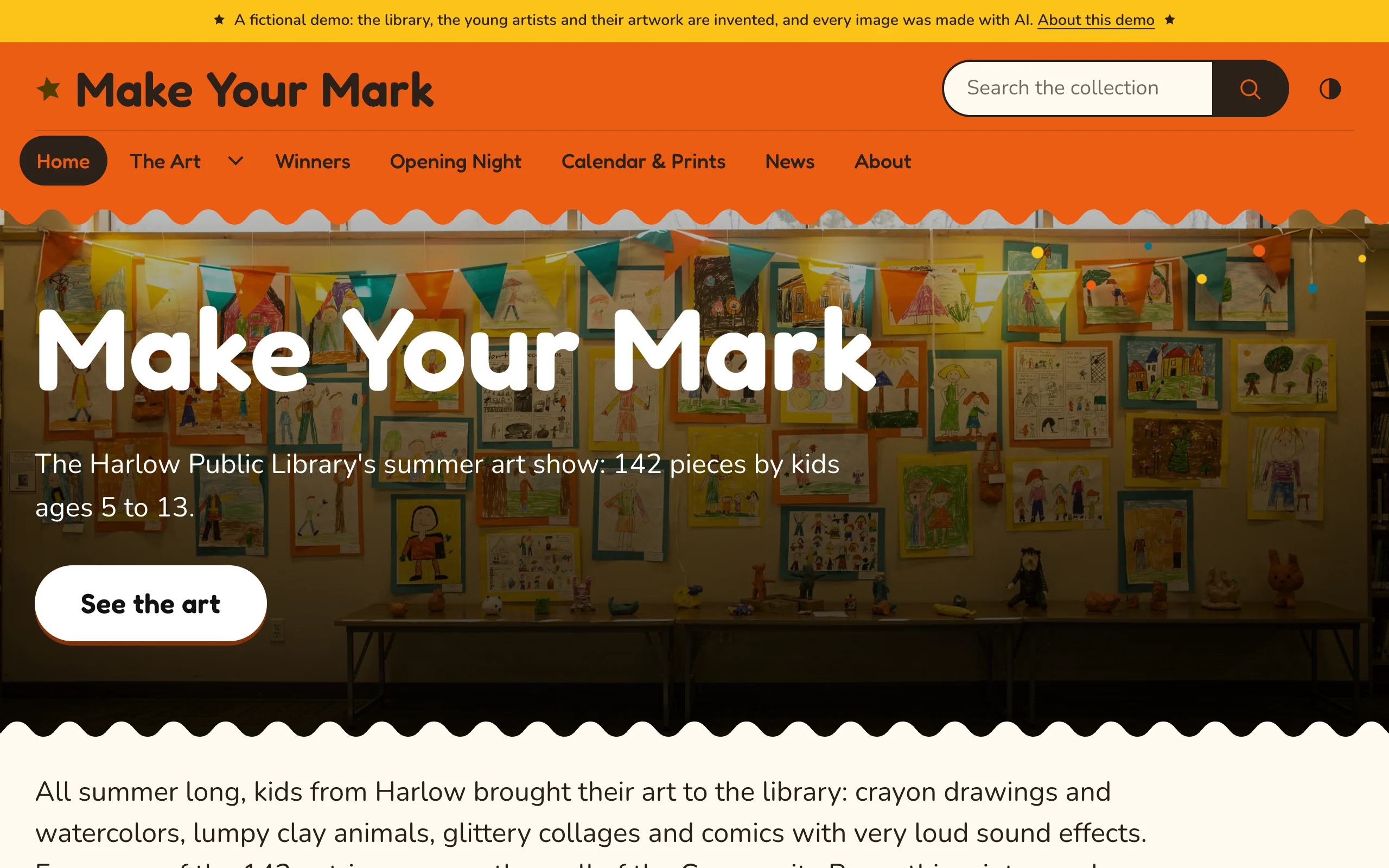
| Landing page | Home and campaign pages built from full-width sections. No breadcrumbs; the page title becomes a hidden heading for screen readers (add a Page title block to show one). |
| Full width | Blocks span the window width. |
| With section navigation | A sidebar listing the other pages in the current section of the menu. |
| Long-form reading | A narrow column and larger text for essays and articles. |
| Style book | Shows your design system (palette with contrast report, type, buttons, forms, messages), followed by any blocks. Useful on a private page while setting up the theme. |
Pages without a template use the standard layout: breadcrumbs, the page title, and blocks in the content column.
Previous and next links
When the site shows page navigation (Site admin › Settings), standard pages end with links to the previous and next pages in the menu.
Page date and time
Omeka's Page date/time block shows when the page was created and last modified, in a quiet line that follows the date format you choose in the block.