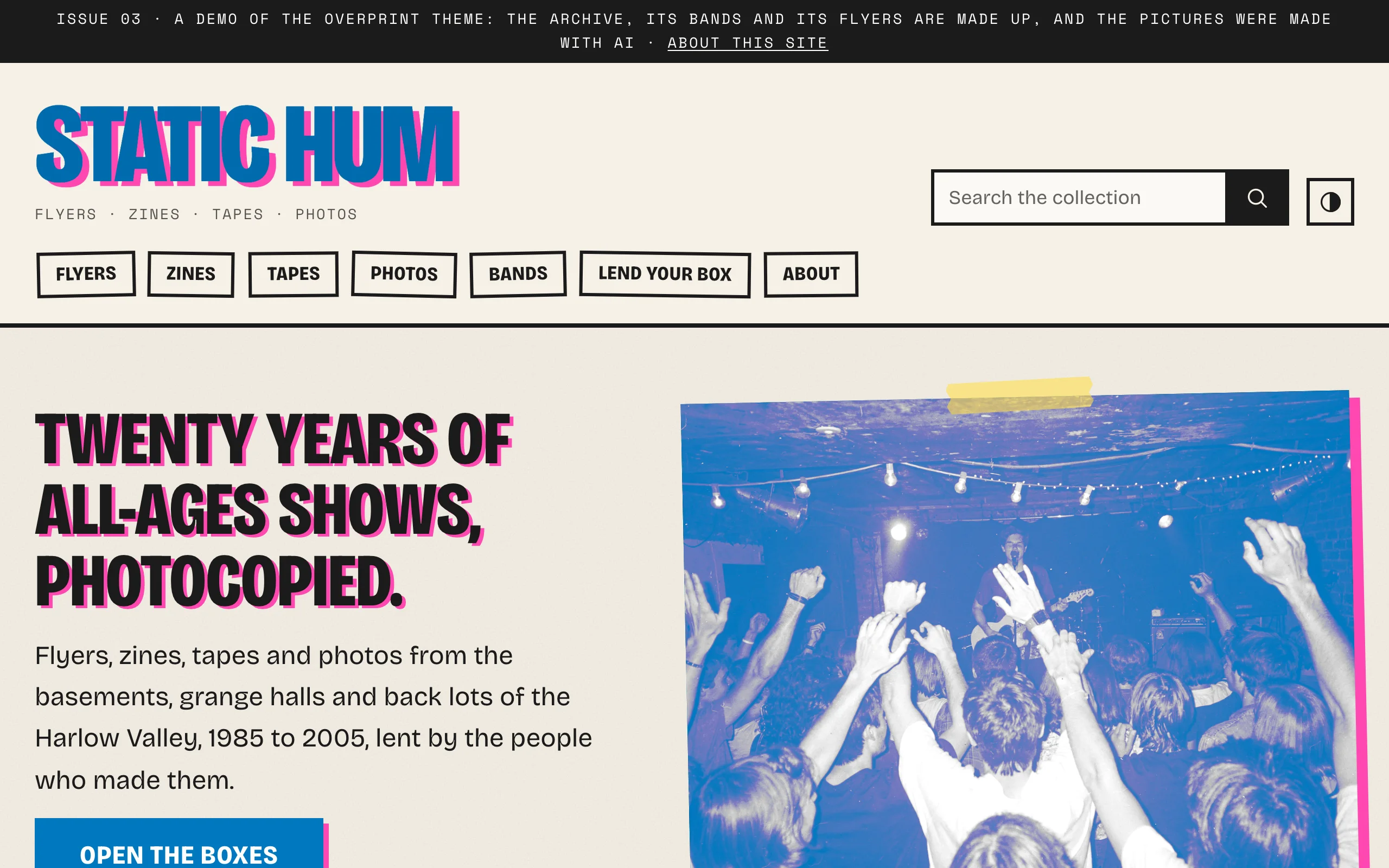
See Overprint on a working site: Static Hum, a community archive of a small valley's all-ages music scene, with flyers, zines, tapes, photos and the bands that made them.
Requirements
- Omeka S 4.2 or later
- PHP 8.1 or later
Overprint has no other requirements. Its fonts, icons and scripts are included and served from your own site.
Installing
- Unzip the theme and copy the
overprintfolder into thethemes/folder of your Omeka S installation. - In the admin, open your site and choose Theme.
- Select Overprint and click Save.
- Click Edit theme settings and choose a preset. See First steps.
The theme is now used by that site. Each site in your installation chooses its theme and keeps its own settings.
Optional companions
- Design Studio adds a live-preview customizer: change settings beside your site and publish when you are ready.
- BlockSuite adds hero, call-to-action, statistics, timeline, slider, tabs and accordion blocks, all drawn in Overprint's style.
Upgrading
Replace the themes/overprint folder with the new version. Settings are stored with each site, so they are kept. Read the changelog for anything new to set up.
Switching from another RefBytes theme
Block templates and page templates have the same names in every RefBytes theme, so pages built with Vitrine, Confetti or Plinth keep their templates in Overprint, drawn in Overprint's style. Theme settings are stored per theme: after switching, choose Overprint's preset, logo and footer once.
The arrangement of item pages (Configure resource pages) is stored per theme too, and Overprint starts from its own: the picture in the main column, the item's details beside it as an index card. See Browse and item pages.