Item, media and item set pages are built from blocks arranged in regions. Arrange them under Theme › Configure resource pages.
Regions
| Region | Where |
|---|---|
| Top | Full width, above the metadata |
| Main column | Beside the sidebar |
| Sidebar | Right or left of the main column, or below it (where the theme offers Item & media pages › Page layout) |
| Bottom | Full width, below the metadata |
Item sets have a Main column and a Sidebar, shown above the items of the set.
Blocks from the theme
In Configure resource pages these blocks are listed with the theme's name first, such as "Vitrine: Cite this" or "Confetti: Cite this". Every RefBytes theme offers the same blocks. Omeka saves the arrangement with each theme's settings, so if you change it and later switch themes, arrange the new theme's pages again.
| Block | Shows |
|---|---|
| Previous and next in collection | Links to the previous and next items of the item's collection (item set), and the item's position in it ("Item 12 of 28") |
| Media gallery | The first media large (images open in an accessible viewer), the rest as thumbnails |
| Cite this | A citation built from Dublin Core values, with a copy button |
| Share | Copy link, email and the device's own share options; no third-party scripts or tracking |
| Rights & reuse | RightsStatements.org and Creative Commons statements as plain-language labels with icons |
| Downloads | Original files with their type and size |
| Subject links | Subject values as links to other items with the same subject |
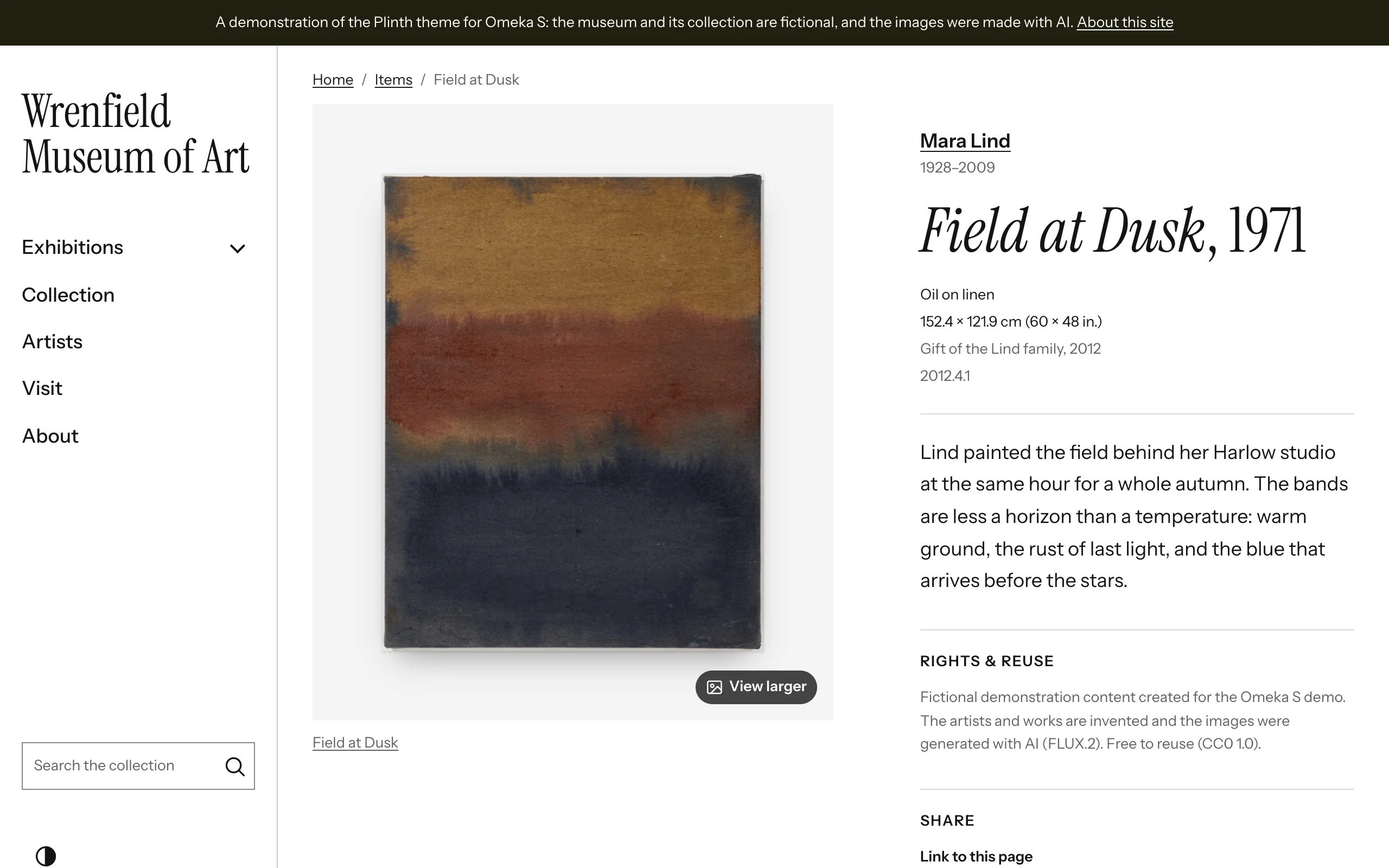
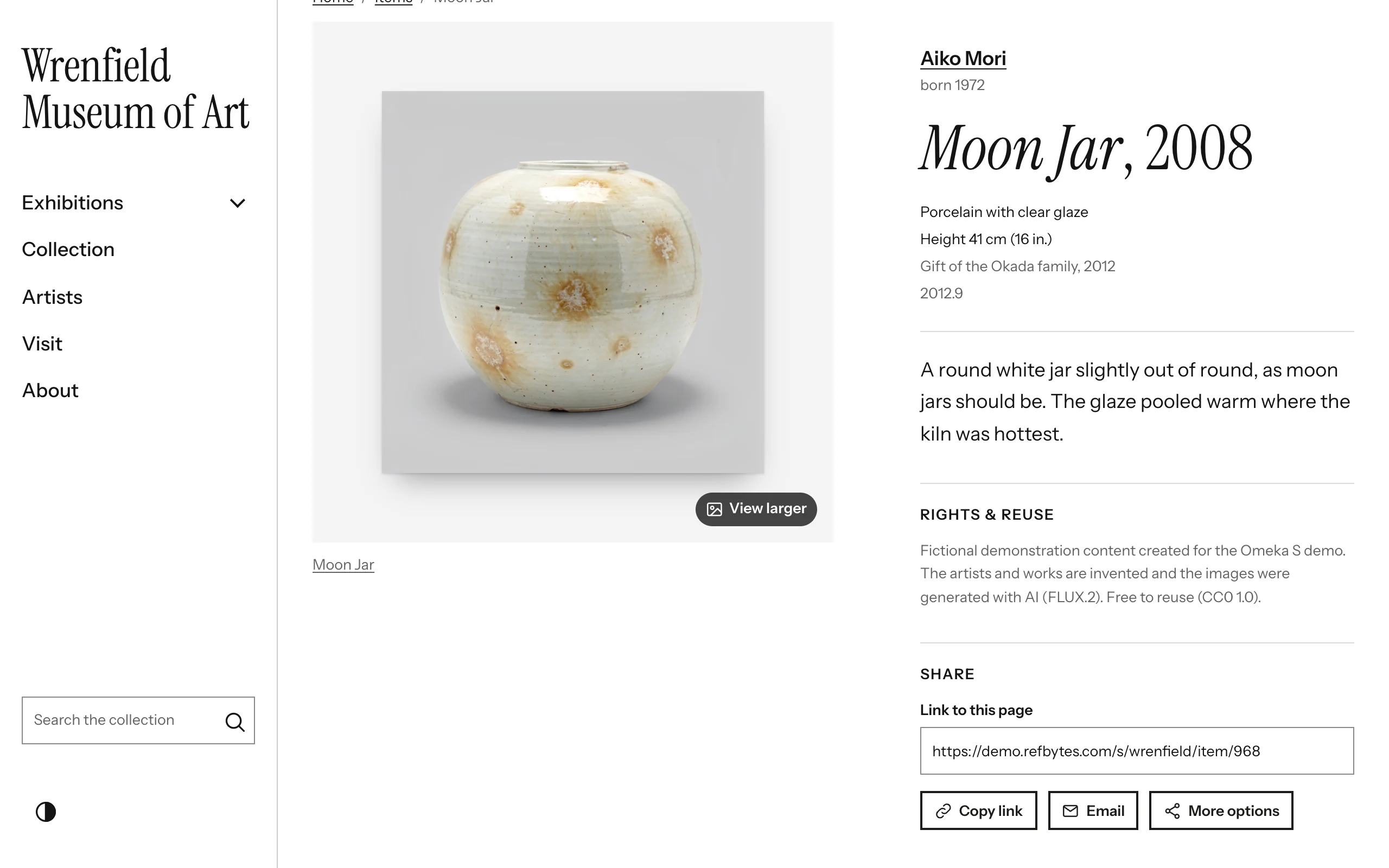
| Wall label | The caption a museum hangs beside a work: the artist and their dates, title and date, medium, dimensions, credit line, number, then the label text |
| Linked items as cards | The items that link to this one, such as an artist's works, as a grid of cards |
Omeka's own blocks (values, media embeds, item sets, linked resources, site pages and others) can be used in any region too. In the top or bottom region, the values list gets the heading "Details".
Default arrangement
Most RefBytes themes start from this arrangement; a theme that starts from its own describes it in its documentation.
| Page | Top | Main column | Sidebar | Bottom |
|---|---|---|---|---|
| Items | Previous and next, Media gallery | Values | Rights & reuse, Cite this, Item sets, Share | Linked resources, Site pages |
| Media | Media render | Values | Downloads, Cite this, Share | |
| Item sets | Values | Rights & reuse |
Previous and next in a collection
The Previous and next in collection block lets visitors step through a collection without going back to it. It follows the collection's page:
- Which collection: the one the visitor came from (links on a collection's page say which), else the item's first collection.
- Which order: the order the visitor chose on the collection's page, else the site's default order for items (Site admin › Settings, browse defaults).
Arriving from a collection, the breadcrumbs also lead back through it ("Home / Item sets / Collection / Item"). The block shows nothing for items without a collection, or alone in theirs.
Long value lists
Properties with many values show the first few and a "Show all" button. Where the theme offers Item & media pages › Shorten long value lists, you choose how many.
Wall label
The Wall label block reads Dublin Core values, and leaves out a line when its value is missing:
| Line | Property |
|---|---|
| Artist | Creator. When the creator links to an item (an artist's own page), the name links there and that item's Date shows under it as the artist's dates. |
| Title and date | Title, Date |
| Medium | Medium |
| Dimensions | Extent |
| Credit line | Provenance ("Gift of the artist, 1998") |
| Number | Identifier (an accession number) |
| Label text | Abstract, else the first Description |
On the page of a person or an organization (an item with a class such as Person, Organization or Agent), the label shows only their dates and the text, under the page title. Screen readers hear each detail line with its property's name, or the name the item's resource template gives it.
Linked resources
The Linked resources block lists the items that point to this one, for example through a relation property, with a filter by property and pages of results. Linked items as cards shows the same items as cards, up to 48 for each property they link through: on an artist's page, their works.